Overview
We built this one for fun
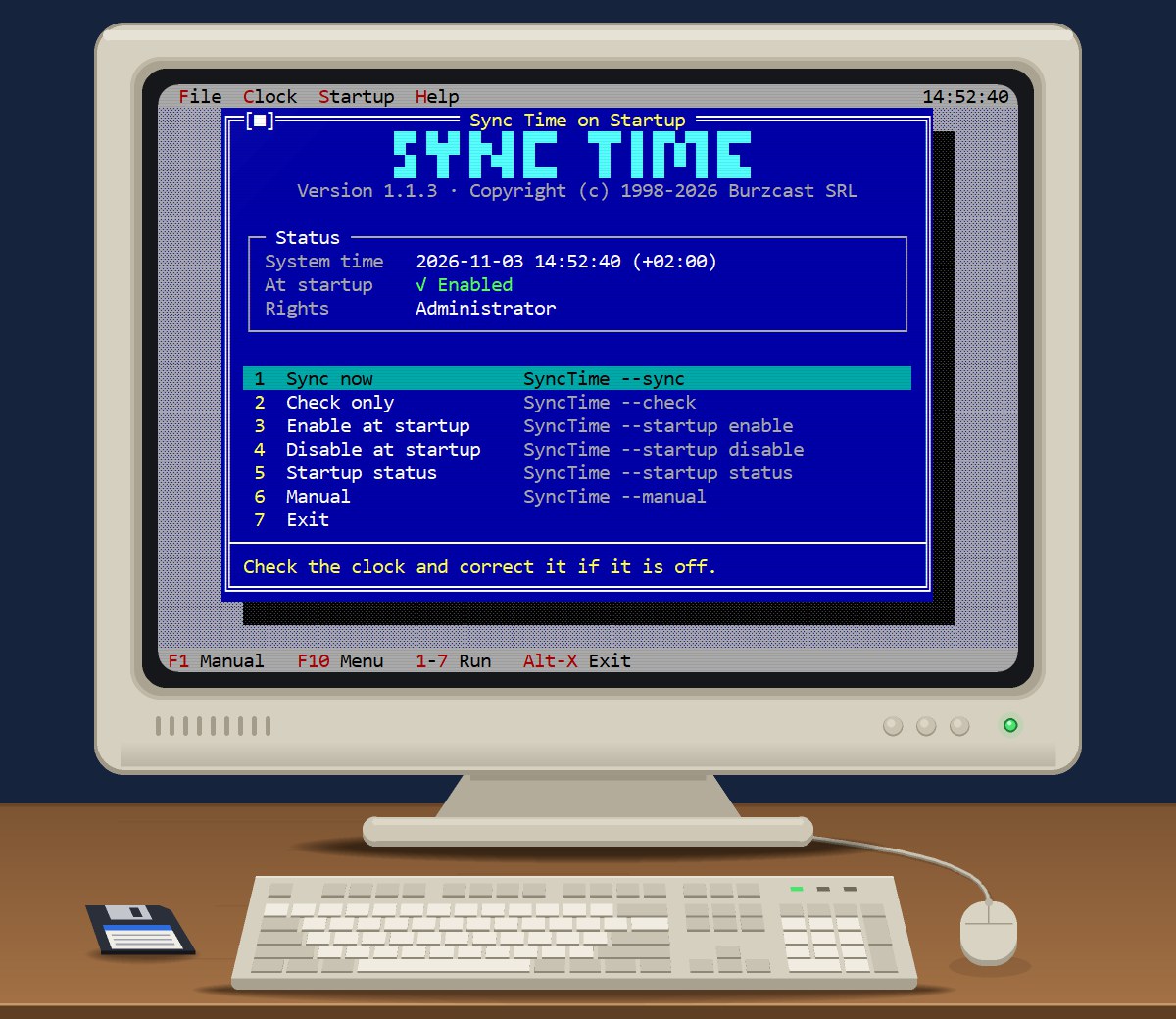
Not everything we make needs a business case. We’ve been writing software since 1998, back when Turbo Pascal screens looked exactly like this, and sometimes we just want to build one of those again. Software is also how we enjoy ourselves.
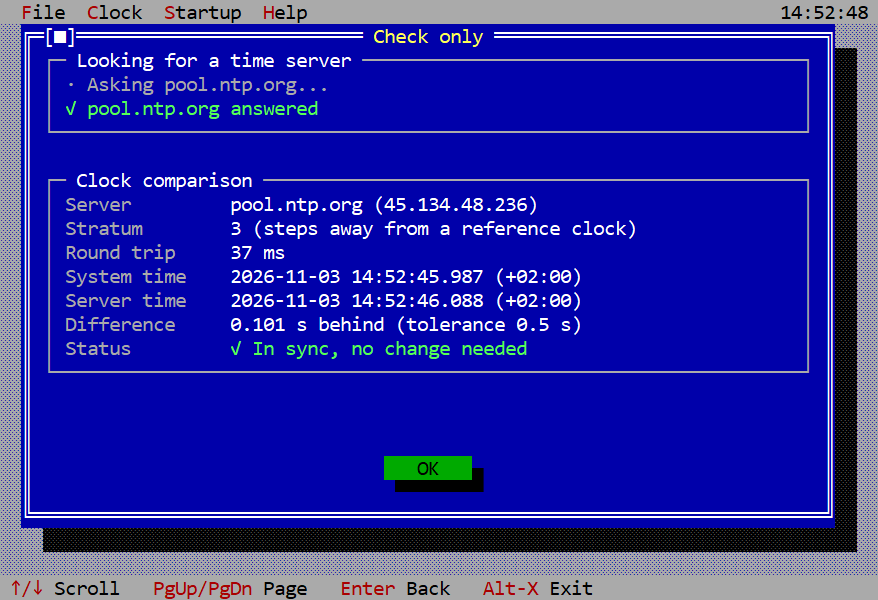
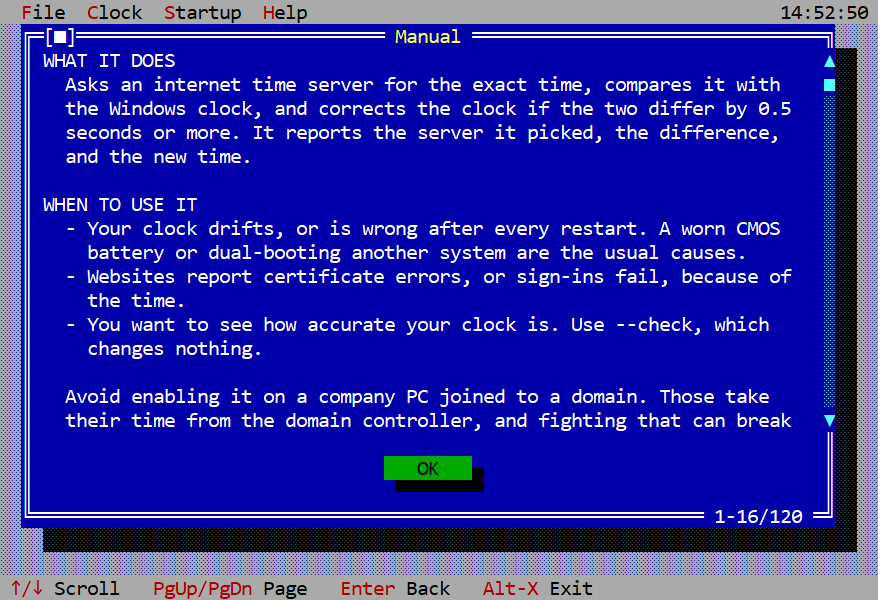
Don’t let the blue fool you: this isn’t an old program, and it won’t run in MS-DOS or a DOS emulator. It’s a brand-new .NET 10 app that runs in your terminal, console or Command Prompt, on Windows only. The pull-down menus, double-line windows and blocky progress bar redraw themselves to fit whatever size your window is.
As for what it does: it asks an internet time server for the exact time and corrects your clock if it’s off by half a second or more. That’s it. No roadmap, no pricing page, and nobody will call you to schedule a demo.
Real product interface
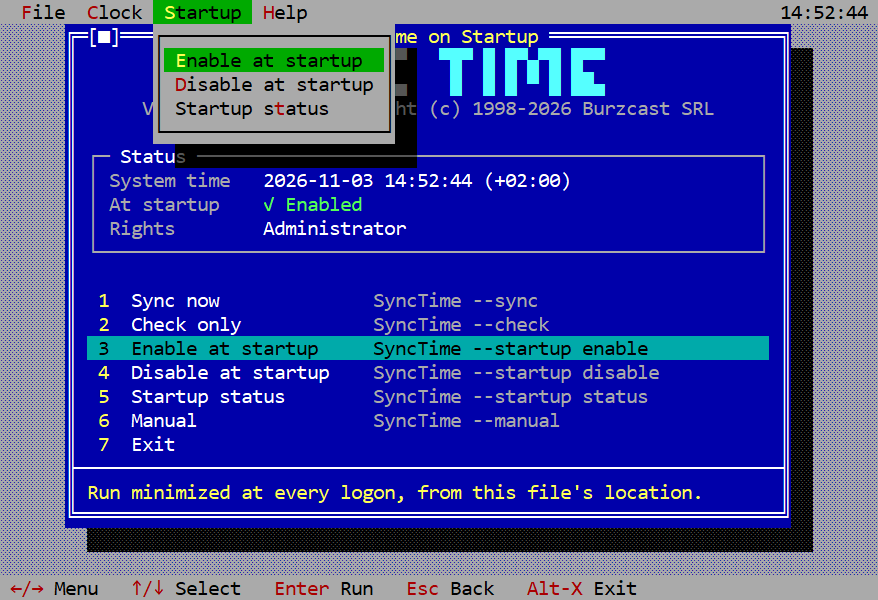
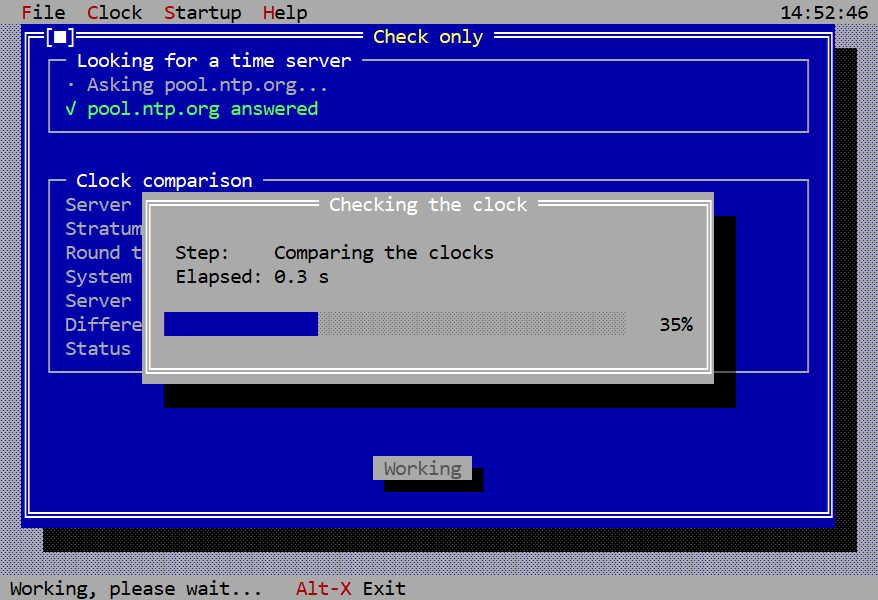
Sync Time screenshots
Select the image to open it at full size.
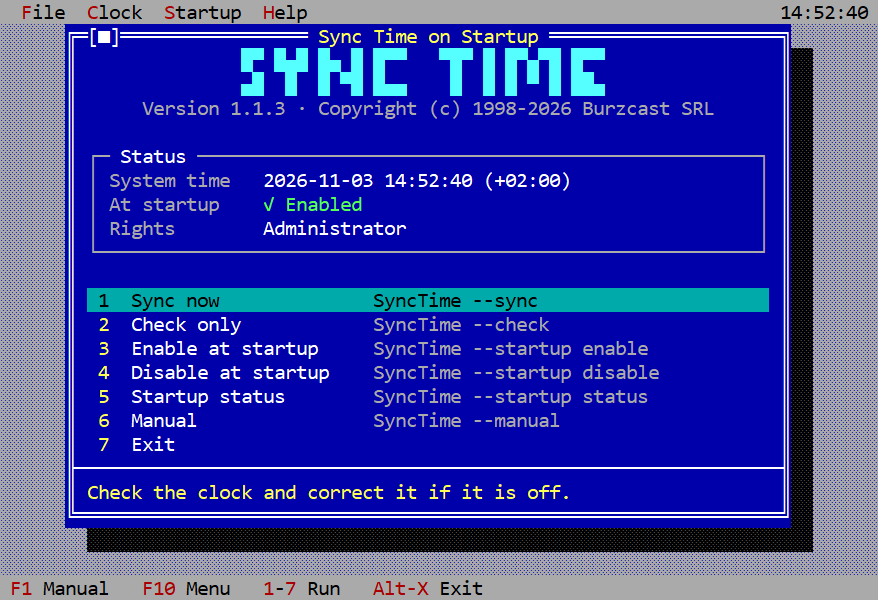
Yes, this is a real screenshot: what it looks like on Windows 11, drop shadows and all.
Features
What it does
- Corrects your clock when it’s off by 0.5 seconds or more.
- A check that only looks and changes nothing.
- Two different servers must agree before it corrects a minute or more.
- If a server doesn’t answer, it tries the next one: six by name, then three by IP address.
- Can run at every logon, minimized, then quietly leave.
- Pull-down menus, drop shadows and double-line windows.
- Every menu item is also a plain command, for the command line crowd.
- Ready for 2036, when NTP’s own clock rolls over.
Requirements
System requirements
- Windows 10 or Windows 11
- x64, ARM64 or 32-bit x86
- .NET 10, packed inside the .EXE: nothing else to install
- Runs in the terminal, console or Command Prompt, not in MS-DOS
- Administrator rights when the clock needs correcting
Download
Sync Time 1.1.3
Released on 3 November 2026. Free to download and use under the license. It is no longer developed and is offered as it is.
-
64-bit (x64)
Most Windows PCs, Intel or AMD · SyncTime-x64.zip, 5.8 MB
SHA-256
f761f59e6d0e9051373139377b164d0c5df916ec29fdf0f0c4ef51298113a451 -
ARM64
Windows on Arm, such as Snapdragon PCs · SyncTime-arm64.zip, 5.7 MB
SHA-256
288b0b41982cdb456a05313e5e350dbc4d7ff23ae52d603b85362fedc2cadaa6 -
32-bit (x86)
Older 32-bit Windows · SyncTime-x86.zip, 5.1 MB
SHA-256
09e66319659aa9977b9c73c0329aa7a6e58de9f2019664e2782a893336dc1ed3
To check a download, run certutil -hashfile SyncTime-x64.zip SHA256 in the folder that holds it; the result should match the line above.
Getting started
From ZIP to running
- Download the ZIP for your PC: 64-bit (x64) for most PCs, ARM64 for Windows on Arm, or 32-bit (x86) for older 32-bit Windows.
- Unzip it. Each ZIP holds a single .EXE, with .NET packed inside, so there’s nothing else to install.
- Run it from your terminal, console or Command Prompt, or just double-click it.
- Choose Sync now to fix the clock, or Check only to see how far off it is without changing anything.
Windows only lets administrators set the clock, so expect its usual prompt when a correction is needed. The files aren’t code-signed, so SmartScreen may raise an eyebrow the first time.
Enable at startup runs it minimized at every logon, from wherever the .EXE is, so put it somewhere it can stay first. Avoid this on a company PC joined to a domain: those take their time from the domain controller.
Command line
Every menu item is also a plain command
Run these from the folder holding the .EXE, using its full name for your build, such as SyncTime-x64.
SyncTime- Open the full-screen interface.
SyncTime --check- Look, don’t touch: compare the clocks and change nothing.
SyncTime --sync- Fix the clock.
SyncTime --startup enable- Run at every logon, minimized.
SyncTime --startup disable- Stop running at logon.
SyncTime --startup status- Say whether it runs at logon.
SyncTime --manual- Open the manual.
SyncTime /?- Show the quick reference.
Privacy
No telemetry, no account
Sync Time has no account, analytics or telemetry, and nothing it does reaches Burzcast. Its only connections are to public internet time servers, such as pool.ntp.org, to ask them the time; like any server, they can see your IP address. It doesn’t check for updates.